How to Fix "App Not Installed" Error on Android (2026 Guide)
Updated: October 2026 • By GameZora Technical Team • 5 Min Read
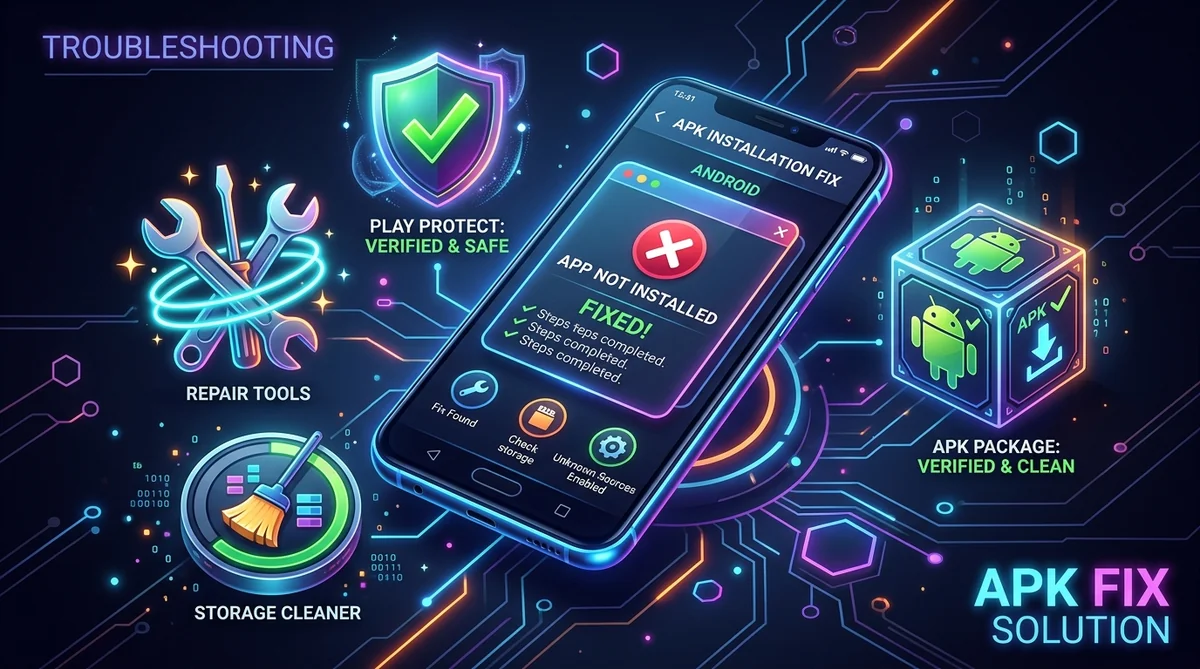
Encountering the dreaded "App Not Installed" error is one of the most frustrating obstacles when trying to set up popular Android games like IX7, Yono 777, or Diwa VIP. While this generic error doesn't explain what went wrong, the issue typically stems from storage exhaustion, Google Play Protect restrictions, or conflicting signatures.
In this comprehensive troubleshooting guide, we walk through 5 verified solutions that resolve the "App Not Installed" error across Android 10, 11, 12, 13, and 14 devices.
Why Does the "App Not Installed" Error Happen?
Before jumping into the fixes, understanding the root cause helps prevent the issue from happening again:
- Insufficient Internal Storage: Android requires 2x to 3x the size of the APK package in temporary cache space during package unpacking.
- Play Protect False Flag: Google Play Protect frequently blocks third-party gaming packages because they are downloaded outside the Google Play Store.
- Conflicting Signatures: Installing an APK over an existing application that has a different developer signature will trigger an automatic installation abort.
- Corrupted Download: Unstable mobile data can lead to an incomplete APK package missing essential resource files.
Step 1: Free Up At Least 500 MB of Internal Storage
Even if an APK file is only 48 MB, the Android Package Installer needs substantial buffer storage to unpack assets, libraries, and graphics. If your phone has less than 500 MB free, the installer will silently fail.
Solution: Go to Settings > Storage, clear cached data from heavy apps (like WhatsApp or video players), and delete unused media files.
Step 2: Temporarily Turn Off Google Play Protect
Google Play Protect scans applications installed from external browsers. Often, it falsely identifies genuine third-party APK packages as unrecognized and halts installation.
- Open the Google Play Store application.
- Tap your circular Profile Icon in the top-right corner.
- Select Play Protect.
- Tap the gear Settings icon in the top-right.
- Toggle off "Scan apps with Play Protect" and "Improve harmful app detection".
- Return to your file manager and tap the APK to install.
Step 3: Uninstall Any Existing or Conflicting Version
If you previously downloaded an older build or a different variation of the same game, Android will refuse to overwrite it if the security keys do not match.
Solution: Locate the existing version of the app on your home screen or in Settings > Apps, tap Uninstall, restart your device, and then install the new package.
Step 4: Enable "Install Unknown Apps" for Your Browser
Modern Android versions require explicit permission for each application that handles files:
- Open Settings > Apps > Special App Access.
- Select Install Unknown Apps.
- Find Google Chrome (or whichever browser you used) and toggle "Allow from this source" to ON.
- Repeat this for your Files / File Manager app.
Step 5: Download a Fresh, Verified Package from GameZora
If the APK was corrupted during download, no amount of troubleshooting will fix it. Always ensure you are downloading a complete, verified package file.
Ready to Play? Download Verified 2026 Gaming APKs
All packages on GameZora are scanned for malware and verified on live Android hardware:
Conclusion
By following these 5 steps, you can eliminate the "App Not Installed" error permanently and enjoy smooth, uninterrupted gaming. If you continue experiencing issues, visit our Contact Us page to report the specific build and our team will verify the package.